
KidInspector
for Windows Computers
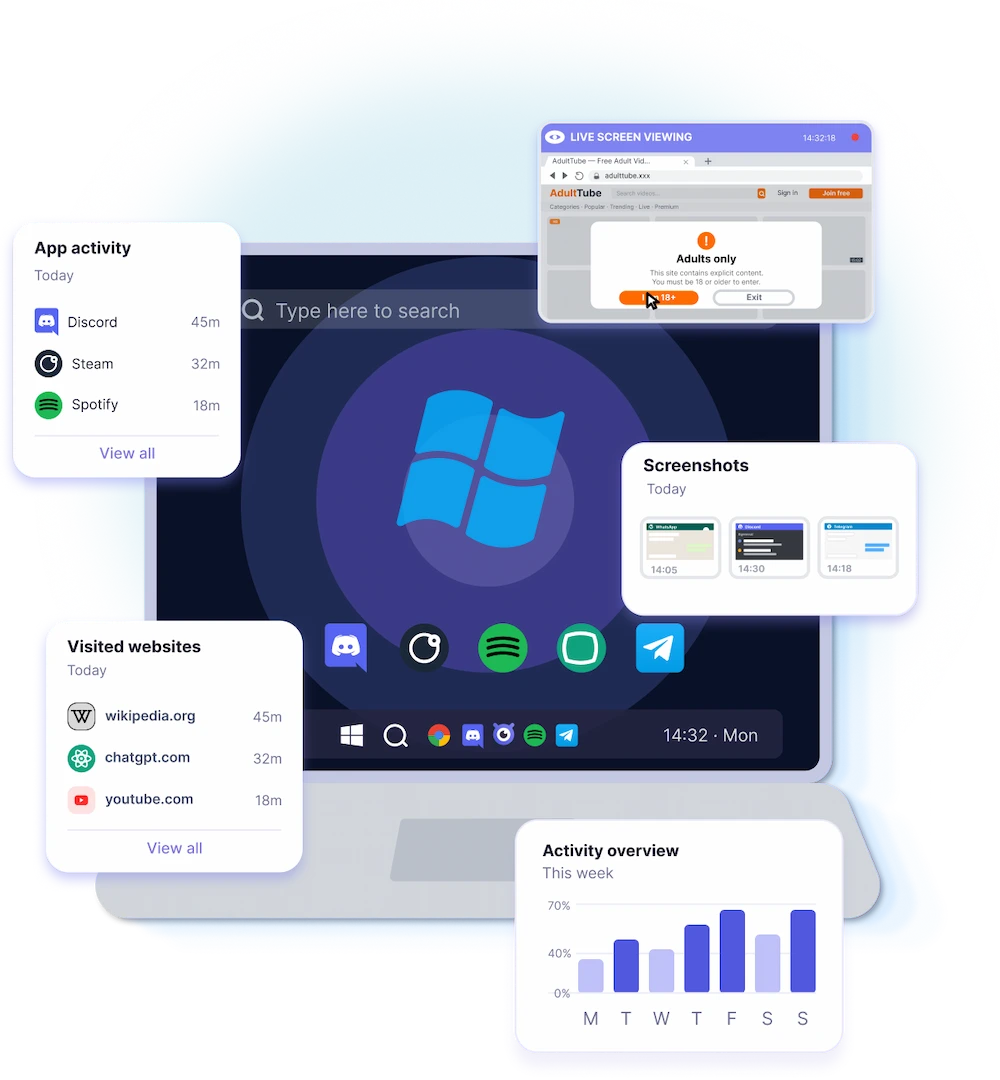
KidInspector for Windows shows parents how the home computer is really used. From one web dashboard you get app usage, visited sites, screenshots, traffic consumption, installed programs, website blocking events and device activity statistics.
Distracting programs, unsafe pages, late-night sessions, AI chat activity - the kind of pattern that usually calls for a calm conversation or a clearer rule at home.
Windows Monitoring Features
The Windows app reports a child's computer activity - programs, pages, screenshots, traffic use and device statistics - so you do not have to inspect the machine by hand every evening.
Screen & Input
- Live screenAvailable
- Screenshots(Available in supported apps)
- Recognized text searchIn dev
Chat activity
- Messenger activity(Available where supported)
- AI chat activity(Available where supported)
Activity & Usage
- Installed apps overviewAvailable
- Device statisticsAvailable
- Internet traffic usageAvailable
- Device activityAvailable
Insights & Dashboard
- Online dashboardAvailable
- Daily activity statsAvailable
Location
- Device location(Available with system permissions)
- Location history(Available with system permissions)
App & Web control
- Website activity(Available in supported browsers)
- Active appsAvailable
- Website blocking(Available with browser-related limitations)
What is available can depend on the Windows version, browser support and the plan you selected.
What You Can See on a Windows PC
KidInspector for Windows covers the everyday questions: which messengers are open, which games are running, which sites are visited, what gets typed, what gets installed.

KidInspector covers 30+ messengers and apps, among them WhatsApp, Telegram, Instagram, Facebook Messenger, Snapchat, Discord, WeChat and Gmail.
Active apps
See which apps are active and how long they stay in focus.
Visited websites
Review browsing activity in the most popular browsers.
Messenger and AI apps
Review activity in AI apps and 30+ messengers through screenshots.
Screenshots
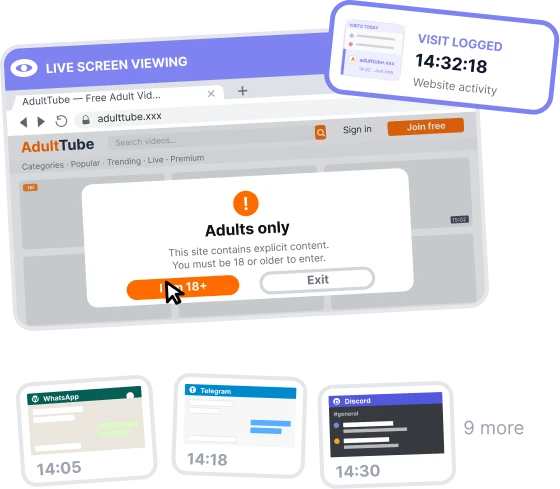
See screenshots from supported apps, browsers, messengers, and AI chat tools.
Website blocking
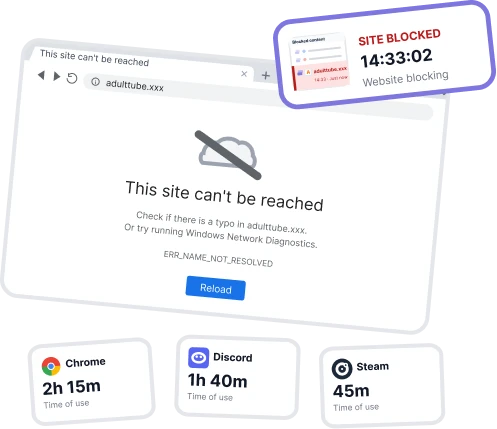
Limit access to selected websites where blocking is supported.
Blocking events
See attempts to open blocked websites.
Live screen
View the child’s computer screen live when needed.
Device statistics
Understand when the computer is active and how it is used during the day.
Installed apps
Check which apps are installed on the computer.
Device activity
Understand when the computer is active and how it is used during the day.
Setting Up KidInspector on Windows
No technical background is needed here. The app was designed so that installation and daily use stay straightforward.
Register an account
Sign up and choose a plan by the features and the number of computers you need.
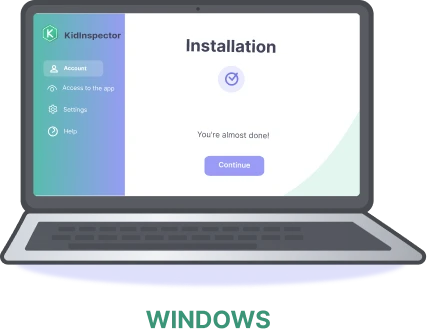
Install the app on the computer
Download the installer from your dashboard and run it on the computer you plan to monitor. You will need the machine in front of you.
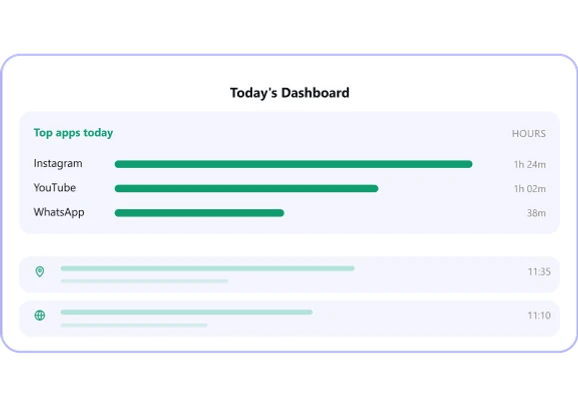
Sign in to the dashboard
The first reports normally show up a few minutes after installation. The dashboard opens in any browser, on a computer or a phone.
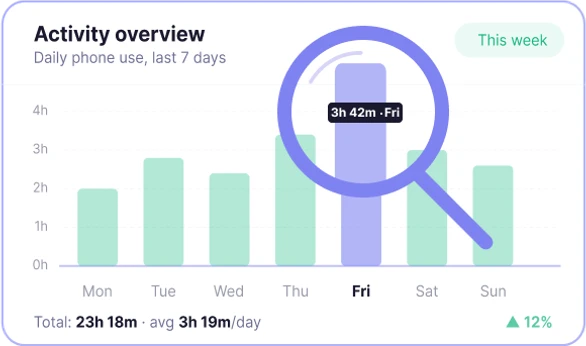
Use the reports responsibly
Read them to understand how your child uses the computer, catch risky behavior early, and encourage healthier digital habits.
Windows Requirements
Before choosing a plan, look through the feature list and confirm the computer runs a supported version of Windows.

Windows OS 10 and up
The app is built for computers running Windows OS 10 or above.

Physical access required
The first setup requires access to the machine itself.

Browser Compatibility
Browsing reports and website blocking both depend on which browser is in use.
Responsible Use on Windows
KidInspector for Windows is a parental control app for family safety and for lawful monitoring by someone properly authorized.
As a rule, parents may monitor a minor child's activity on their devices for safety and well-being. Monitoring an adult is different and normally requires proper notice and consent. Check the laws of your country, state or region and follow them.
KidInspector must not be used for covert surveillance, stalking, following another adult without authorization, or any unlawful purpose.
You may install it on:
- a computer you own;
- a computer your child uses;
- a shared household computer where the rules are known to everyone;
- a computer you are legally entitled to monitor and have the required consent for.
KidInspector for Windows FAQ
KidInspector works on computers running Windows OS 10 and above.
Apps in use, visited websites, screenshots, installed programs, traffic consumption, website blocking events, device activity, device statistics and the live screen.
Take a look at the View Demo to see it firsthand.
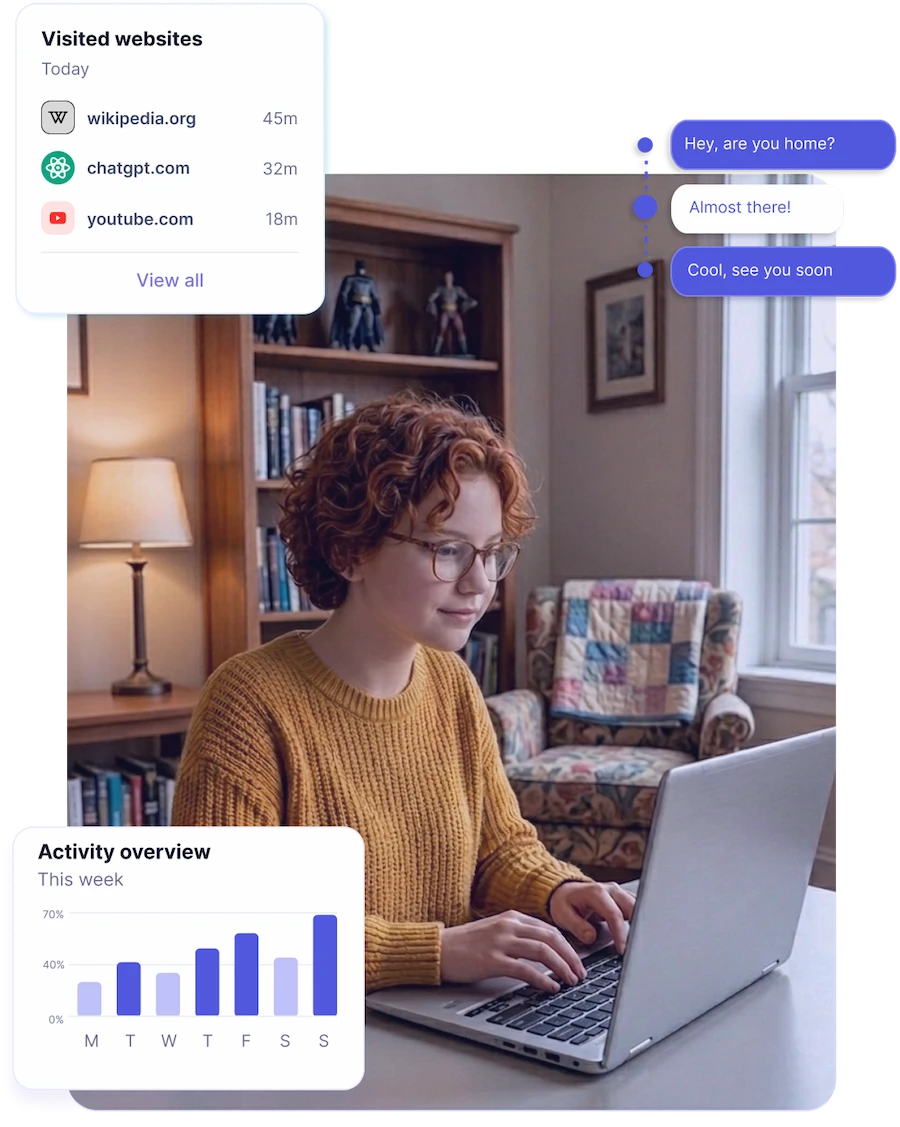
Yes. Parental control and family monitoring are exactly what it is for. The app shows how a child uses the shared machine, which programs get opened, which sites get visited, and when the computer is in use.
Yes. Visited pages are reported from the most widely used supported browsers.
Yes. Website blocking works on Windows in the most popular browsers, which lets you cut off distracting, harmful or age-inappropriate pages.
No. App blocking is not available on Windows. There the app concentrates on reporting program activity, browsing, screenshots, traffic use and device statistics.
Yes, in supported AI tools, messengers and social platforms, including WhatsApp, Discord, Telegram, Instagram, Viber and others. Context is captured through screenshots and typed text.
No. Text recognition on screenshots is not available on Windows.
The app is meant for lawful use on your own computer, on your child's computer, or on a machine you are legally entitled to monitor with the required consent. Parents can normally monitor a minor child's device; monitoring an adult usually requires consent. Check the law where you live and follow it.
Watch the Home Computer, Responsibly
Built for parental control and family safety, KidInspector for Windows shows what happens on your child's computer, makes digital habits easy to read, and gives household rules something to stand on - all from one web dashboard.